
Wifi QR App
The Wifi QR app displays a scannable QR code and credentials for joining a guest WiFi network on your screens.
When you add and setup an app to a playlist, it appears as a scene.
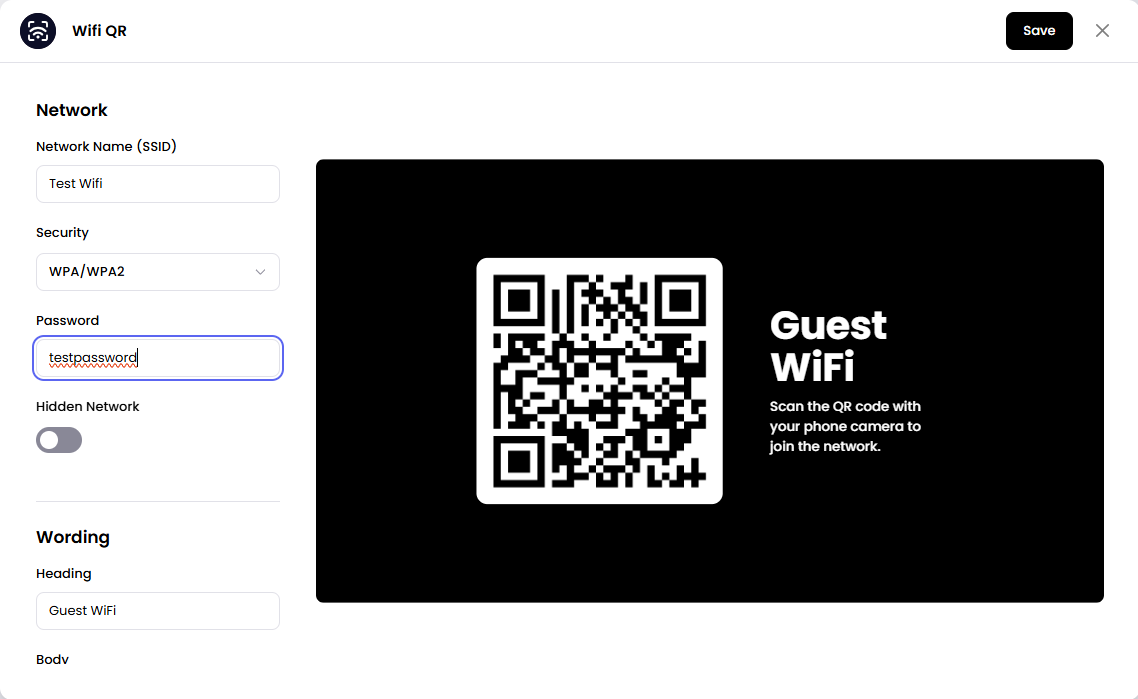
Guests scan the QR code with their phone camera to join the network. The QR code is generated from the network details you enter.
Add the Wifi QR App
Open the Playlist where you want to add the QR code.
In the right panel, drag Wifi QR into the playlist.
Open the scene to configure it.
Enter the Network Information (this will automatically generate the QR for the network info) and configure preferred style settings, if needed.
Click Save.
Configuration Options
Network Name (SSID) - Enter the name of the WiFi network. This is required before you can save the scene.
Security - Choose the security type of the network.
WPA/WPA2 - The network uses a WPA or WPA2 password.
WEP - The network uses a WEP password.
Open (no password) - The network has no password. The password field is hidden when this is selected.
Password - Enter the network password. This field is shown only when the network is not open.
Hidden Network - Turn this on if the network name is not broadcast.
Heading - The title shown above the QR code. This defaults to Guest WiFi.
Body - The text shown with the QR code. This defaults to Scan the QR code with your phone camera to join the network.
Background Color - Set the color behind the QR code and texts.
Title Color - Set the color of the heading.
Body Color - Set the color of the body text.
Background Image - Add an optional background image.
Set the Scene Duration
After saving the app, you can adjust how long the scene stays in the playlist.
In the Playlist, find the Wifi QR scene.
Click the duration value (for example,
00:30) to set how long the scene plays.00:30means the scene will play for 30 seconds.
Notes
You must enter a Network Information before you can save the scene.
The QR code is generated from the network details you enter, so it updates when you change them.