ROLLER Session Board App (Beta)
The ROLLER Session Board app displays your ROLLER venue’s sessions on your screen, such as session times, session names, and the number of spots remaining.
When you add and setup an app to a playlist, it appears as a scene.
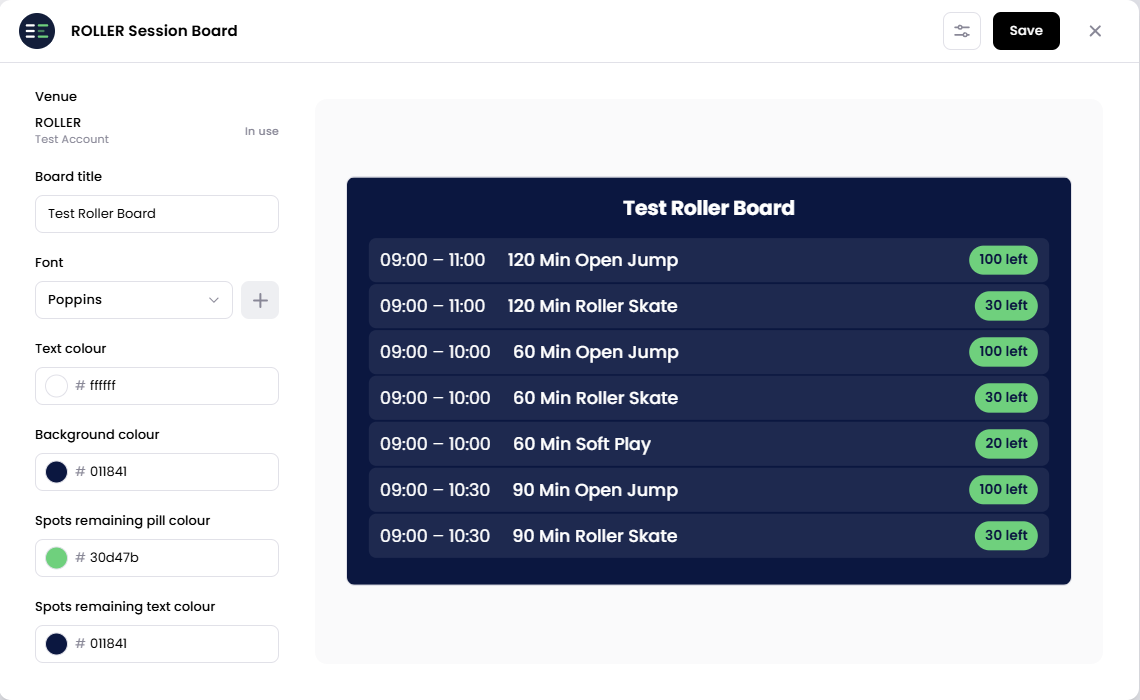
Connect your ROLLER venue to Juuno, then customize the board title, font, colours, and availability display to match your branding.
Before You Start
To use the ROLLER Session Board app, you’ll need:
A ROLLER account with API access
Make sure your key has scope or permission to access venue and session information. You can update the scopes to specific API endpoints.
These credentials allow Juuno to securely connect to your ROLLER venue and retrieve the session information used by the Session Board.
Get Your ROLLER Client ID and Client Secret
Log in to ROLLER Venue Manager.
Click Create client key.
Select API Key and give the key a name, such as
Juuno Session Board.Click Create.
Copy the Client ID and Client Secret provided by ROLLER.
Enter these credentials when connecting your ROLLER account to Juuno.
ROLLER API credentials are used to authorize external applications such as Juuno to access your ROLLER data. Reference.
Add the ROLLER Session Board App
Open the Playlist where you want to add the app.
In the right panel, drag ROLLER Session Board into the playlist.
Open the scene to configure it.
Under Venue, select your connected ROLLER account.
If the account hasn’t been connected yet, connect it using your Client ID and Client Secret.
Click Use this account to select the venue.
Customize the board title and style settings if needed.
Click Save.
Juuno currently supports one ROLLER integration per Juuno account. This means you can only connect one ROLLER account at a time.
Configuration Options
Venue - Connect a ROLLER account.
Board title - Enter the heading displayed at the top of the Session Board.
Example:
Today's sessionsSession BoardToday's Activities
Font - Choose the font used for the Session Board text.
Text colour - Choose the colour used for the board title and session information.
Background colour - Choose the main background colour of the Session Board.
Spots remaining pill colour - Choose the background colour of the indicator showing how many spots are still available.
Spots remaining text colour - Choose the text colour used inside the spots remaining indicator.
The preview updates as you configure the app so you can see how your Session Board will appear on screen.
Set the Scene Duration
After saving the app, you can adjust how long the ROLLER Session Board scene stays in the playlist.
In the Playlist, find the ROLLER Session Board scene.
Click the duration value (for example,
00:30) to set how long the scene plays.00:30means the scene will play for 30 seconds.
The scene duration controls how long the Session Board remains visible before your playlist moves to the next scene.
Notes
A ROLLER account with API access is required to use the ROLLER Session Board app.
You’ll need a valid Client ID and Client Secret to connect your ROLLER venue.
Session information is displayed from the ROLLER venue selected under Venue.
Use Board title and the colour settings to customize the board to match your venue’s branding.
The Spots remaining indicator makes it easy for viewers to see availability for each session.
Juuno currently supports one ROLLER integration per account, so only one ROLLER account can be connected at a time.