
While You Wait App
The While You Wait app displays rotating counters and facts for waiting areas on your screens.
When you add and setup an app to a playlist, it appears as a scene.
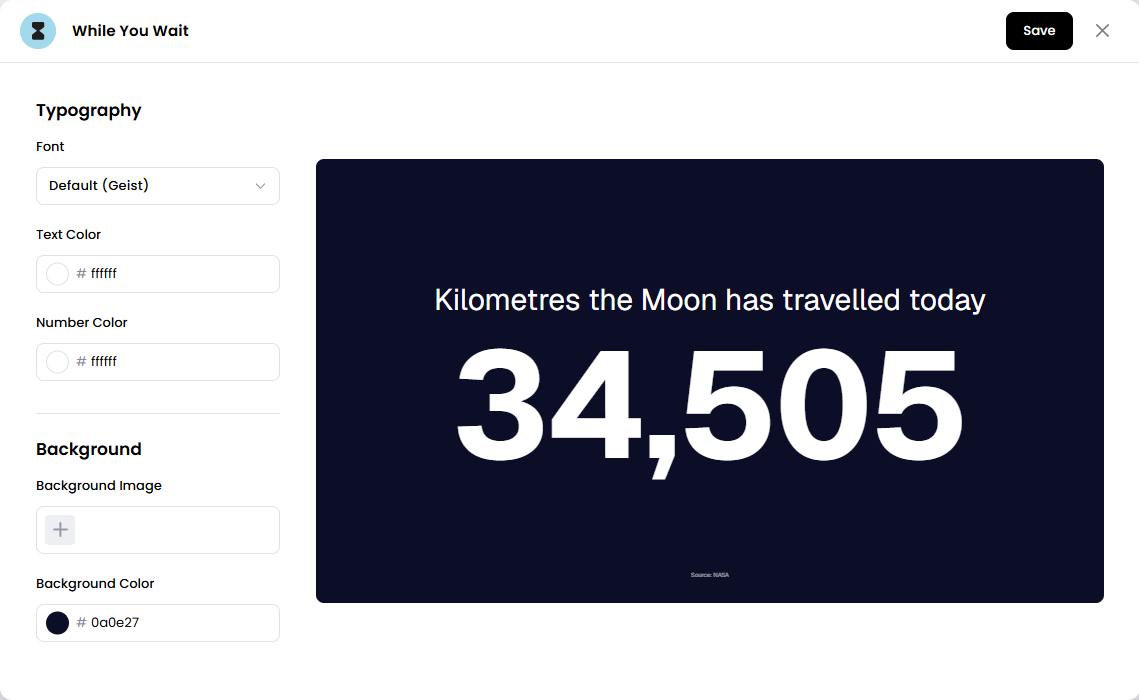
The app rotates through counters and facts to keep people informed while they wait, and can be styled with fonts, colors, and a custom background.
Add the While You Wait App
Open the Playlist where you want to add the content.
In the right panel, drag While You Wait into the playlist.
Open the scene to configure it.
Adjust the typography and background settings.
Click Save.
Configuration Options
Font - Choose from Default (Geist), Oswald, Bebas Neue, Playfair Display, Inter, Space Mono, System, or Serif.
Text Color - Set the color of the text on screen.
Number Color - Set the color of the numbers on screen.
Background Image - Add an optional background image.
Background Color - Set the color behind the content.
Image Opacity - Set how transparent the background image appears, from 0% to 100%.
Set the Scene Duration
After saving the app, you can adjust how long the scene stays in the playlist.
In the Playlist, find the While You Wait scene.
Click the duration value (for example,
00:30) to set how long the scene plays.00:30means the scene will play for 30 seconds.
Notes
Text Color and Number Color are set separately.
The content rotates automatically while the scene plays.