Calendar App
The Calendar app displays events from your calendar as a scene in a playlist. It uses a supported Google, Outlook, or iCloud calendar link in iCal format as its source of events.
When you add and setup an app to a playlist, it appears as a scene.
Get Your Calendar Link
Before setting up the Calendar app, copy an iCal / ICS calendar link from one of the supported services below.
Use the calendar’s feed link rather than its normal webpage URL, an individual event link, or a downloaded calendar file.
Tip: Create a separate calendar for your screen, such as Screen Events, and add only the events you want displayed.
Google Calendar
Use Google Calendar in a web browser on a computer.
If you need to create a calendar first:
Open Google Calendar.
In the left sidebar, click + beside your Other calendars.
Select Create new calendar.
Enter a name, such as Screen Events, then click Create calendar.
Add your events, making sure you select this calendar when creating them.
To get your calendar link:
In Google Calendar, click the gear icon → Settings.
Under Settings for my calendars, select the calendar you want to display.
Open Integrate calendar.
Copy the Secret address in iCal format.
Paste it into Calendar link in your Juuno Calendar scene.
You do not need to make the calendar public when using its secret address. However, anyone with this link can read the calendar, so keep it private. If the link is exposed, click Reset in Google Calendar and replace the old link in Juuno.
Notes:
If the secret address is missing from a work or school account, ask your administrator whether calendar sharing is restricted.
Google’s built-in Birthdays calendar does not provide the address needed for this setup. Use a regular calendar instead.
For a calendar that is already public, you can use Public address in iCal format instead. This address only works when the calendar is public.
Outlook / Microsoft 365
Use Outlook in a web browser.
Open Calendar in Outlook.
Go to Settings → Calendar → Shared calendars. Depending on your version, Shared calendars may appear directly in Settings.
Under Publish a calendar, select the calendar you want to display.
Choose how much information to publish. Select Can view all details if you want the feed to include event titles, locations, and descriptions.
Click Publish.
Copy the ICS link.
Paste it into Calendar link in your Juuno Calendar scene.
Use the ICS link, rather than the HTML link.
Publishing makes the selected calendar information accessible to anyone with its link. If publishing is unavailable on a work or school account, ask your administrator about your organisation’s calendar-sharing restrictions.
Apple Calendar (iCloud)
These instructions apply to calendars stored in iCloud. If Apple Calendar displays a Google or Outlook calendar, follow that provider’s instructions instead.
On an iPhone:
Open the Calendar app.
Tap Calendars.
Tap the info (i) button beside the iCloud calendar you want to display.
Turn on Public Calendar.
Tap Share Link, then copy the link.
Paste it into Calendar link in your Juuno Calendar scene.
On a computer:
Open iCloud Calendar and sign in.
Hover over your calendar in the sidebar.
Click the calendar’s information button.
Turn on Public Calendar.
Select Copy to copy the calendar link.
Paste it into Calendar link in Juuno.
Anyone with the public calendar link can read its shared events. Keep public sharing enabled while using the link in Juuno.
Other Calendar Services
Juuno currently accepts calendar links hosted by Google, Outlook, and iCloud. Other services may offer iCal or ICS links, but those links are not currently accepted by the app.
If you use another calendar app to manage a Google, Outlook, or iCloud account, get the link from the underlying service using the instructions above.
Note: iCalendar is the calendar data format, often called iCal or ICS. It is not a separate calendar provider.
Add the Calendar App
Open the Playlist where you want to add the app.
In the right panel, drag Calendar into the playlist.
Open the scene to configure it.
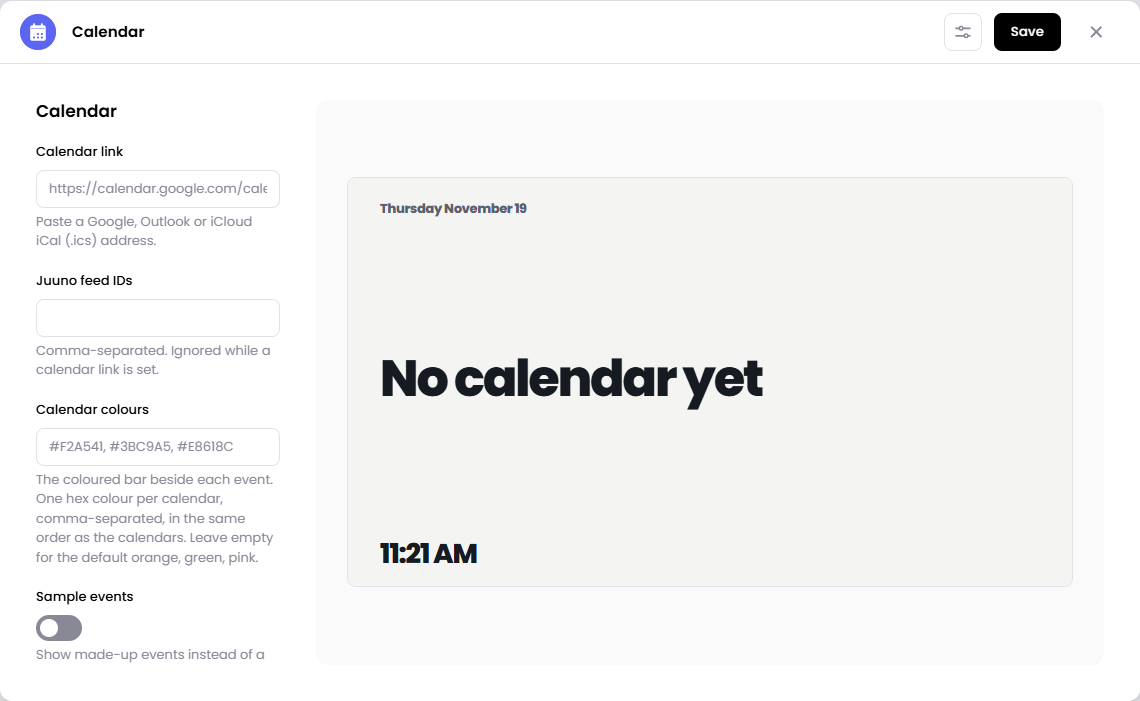
Paste a public Google, Outlook, or iCloud calendar link in iCal format into Calendar link.
Choose a Layout and adjust the other settings.
Click Save.
Configuration Options
Calendar link — Paste a supported Google, Outlook, or iCloud calendar link in iCal format.
See Get Your Calendar Link above for instructions.
Sample events — Turn this on to preview the app with sample events instead of connecting a calendar.
Layout and Events
Layout — Choose how events are displayed:
Agenda (today) — Shows today’s events. This is the default.
Next up — Shows upcoming events.
Week — Shows the week ahead.
Heading — Enter the text you want displayed at the top of the calendar, such as “Today at Bondi Studio” or “Upcoming Events.”
Event details — Choose how much information each event shows:
Time and title only — Default.
Add location.
Add location and description.
The details available depend on the information included in your calendar feed.
Finished events — Choose Hide them or Keep them, faded. The default is Hide them.
All-day events — Show all-day events as a strip above the list. This is enabled by default.
Days in week layout — Choose how many days the Week layout shows, from 2 to 7. The default is 5. This setting only applies to the Week layout.
Look ahead when today is empty (days) — Choose how many days ahead to look when today has no events, from 0 to 14. The default is 7. Set this to 0 to show today only.
Time and Language
Time zone — Enter a time zone, such as Australia/Sydney. Leave this empty to use the device’s time zone.
Language — Enter a language code, such as en, sv, de, or ar. The default is en.
Clock format — Choose Automatic, 12-hour (2:30 PM), or 24-hour (14:30). The default is Automatic.
Show current time — Show a clock in the top corner. This is enabled by default.
Appearance
Theme — Choose Dark or Light. The default is Light.
Heading font and Text font — Choose from Poppins, Geist, Geist Mono, Bricolage Grotesque, Figtree, Inter, Manrope, DM Sans, Space Grotesk, Playfair Display, Lora, or the device’s own font.
The heading font applies to titles and large numbers. The text font applies to times, details, and labels. The default for both is Poppins.
Background image — Add an optional image that covers the whole screen. Lower the opacity to keep the text easier to read.
Tint — Turn this on to add a colour wash over the background. Choose the Tint colour and set the Tint strength (%) from 0 to 100.
Set the Scene Duration
After saving the app, you can adjust how long the Calendar scene stays in the playlist.
In the Playlist, find the Calendar scene.
Click the duration value (for example,
00:30) to set how long the scene plays.00:30means the scene will play for 30 seconds.
Notes
Events come from the calendar link in iCal format.
Links from unsupported calendar providers are rejected.
A Calendar scene without a calendar source plays as No calendar yet, so add a calendar link so the scene has events to show.
Add a calendar link or enable Sample events so the scene has events to display.
Use Sample events to preview the layout before connecting your calendar.
Only include calendar information that you are comfortable displaying on your screen.