Google Reviews App (Beta)
The Google Reviews app lets you display customer reviews and ratings from your Google business listing directly on your screens.
When you add and setup an app to a playlist, it appears as a scene.
The Google Reviews app has two display types:
Overall Rating – Displays your business's overall Google rating and total number of reviews.
Reviews – Displays individual approved Google reviews on your screen.
Use it to highlight positive feedback, build trust, and showcase your overall Google rating.
Adding the Google Reviews App
Open the Playlist where you want to add Google Reviews.
In the right panel, find and drag Google Reviews into the playlist.
Open the Google Reviews scene to configure it.
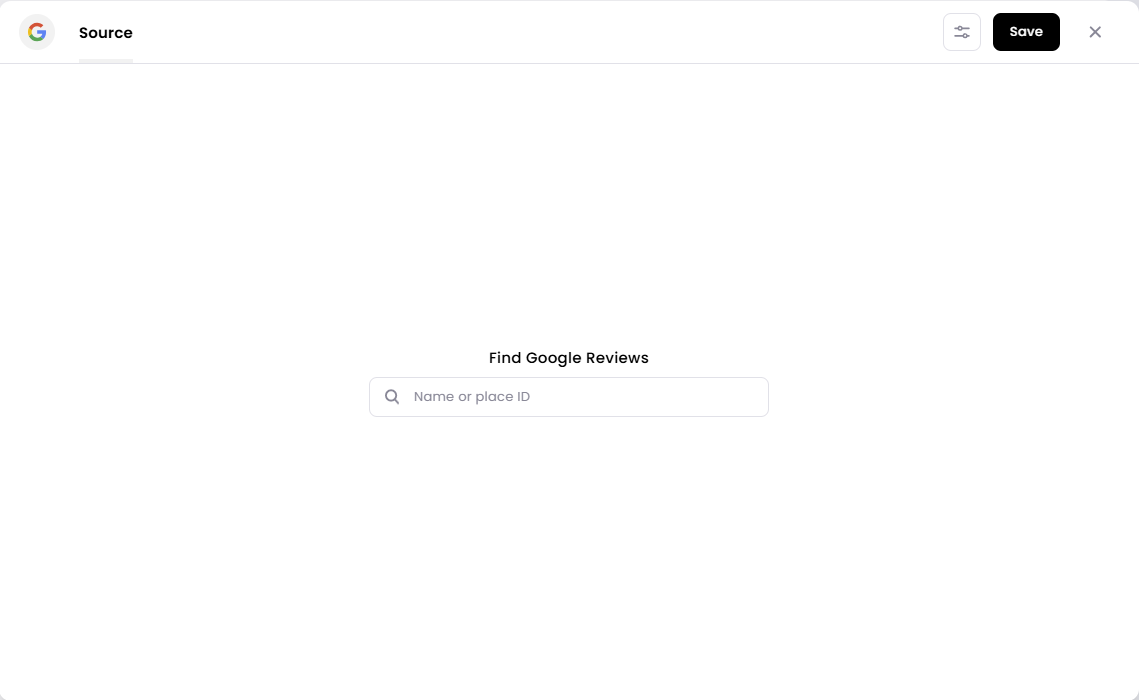
Under the Source tab, search for your business using its name.
Click Search.
Select the correct business from the results.
Click Save.
Moderate Tab
The Moderate tab lets you control which Google reviews appear on your screen.
Each review can be individually approved or rejected, giving you control over the content shown in the scene.
You can also use the filter at the top of the page to view reviews based on their moderation status.
Google Reviews initially pulls in 5 reviews when you first set it up. After that, it checks for and adds any new reviews it can find every 24 hours.
Style Settings
The Style tab controls how your Google Reviews content appears on screen.
Use the Display dropdown to choose between Reviews and Overall Rating. Each display type has its own settings.
Overall Rating (selected by default)
Use the Overall Rating display to showcase your business's overall Google rating and total review count.
Available settings include:
Transition speed – Choose how quickly images transition.
Colour – Choose the colour used for the text and rating display.
Background Colour – Choose the scene's background colour.
Reviews
Use the Reviews display to show individual customer reviews on your screen.
Available settings include:
Order reviews by – Choose the order in which reviews are displayed, such as newest to oldest.
Minimum rating – Set the minimum star rating a review must have before it can be shown.
Review Duration – Set how long each review stays on screen before moving to the next one.
Transition speed – Choose how quickly the app transitions between reviews.
Colour – Choose the text colour used in the review display.
Background Colour – Choose the background colour for the scene.
Setting the Scene Duration
You can adjust how long the Google Reviews scene appears in your playlist.
In the Playlist, find the Google Reviews scene.
Click the duration value, for example,
00:30.Set how long you want the scene to play.
00:30 means the scene will remain on screen for 30 seconds.
The scene duration controls the total amount of time the Google Reviews app plays, while Review Duration controls how long each individual review appears before changing to the next one.