Sync playback with other screens
Sync playback with other screens is a per-screen setting that aligns the automatic playback timeline of one screen with your other screens. When it is on, screens that play the same content show the same scene at the same time, so a row of displays stays in step.
How to turn Sync playback on
The toggle lives in the Advanced section of a screen's settings and applies to one screen at a time, so you turn it on for each screen you want to include.
Go to Screens in the app.
Click the screen you want to sync.
In Screen Settings, scroll to the Advanced section.
Turn on Sync playback with other screens.
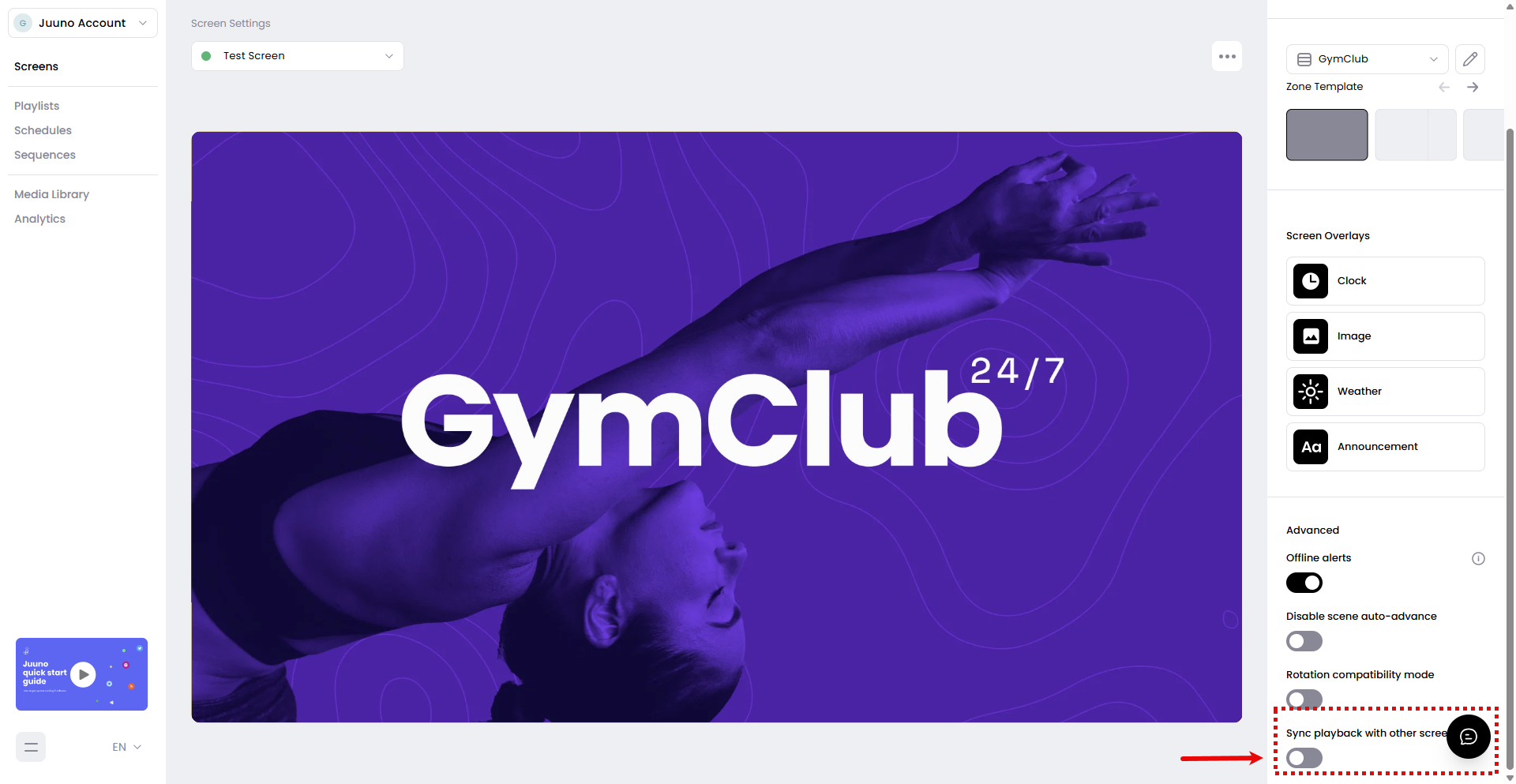
The change saves immediately; there is no separate Save button. Repeat these steps for every screen you want to keep in sync.
What keeps screens aligned
Synchronized screens stay aligned when they resolve compatible content—in practice, when they are assigned to the same playlist. Each screen keeps its own Playlist or Schedule assignment, and Juuno does not require them to match. For screens to visibly stay in step, give them the same playlist.
Synchronization applies to automatic timeline playback. Scheduled content keeps its own absolute schedule windows, so a schedule is not overridden by sync.
Synchronization is approximate, not frame-perfect. Timeline position is sampled about every 250 ms, so screens can be up to roughly a quarter second apart.
Sync vs. Disable scene auto-advance
Sync playback works with automatic timeline playback, while Disable scene auto-advance switches a screen to manual, non-looping playback. The two settings do not run at the same time: a screen in manual playback mode is not part of the synchronized automatic timeline.