
Juuno MCP: Connect an AI agent like Claude
Add Juuno to Claude as a custom connector, then ask Claude to work in Juuno for you. It acts as you, only in the workspaces you pick.
Agent access is in beta testing. To get access email us at [email protected]
Connector URL:
https://app.juuno.co/mcpConnect Claude
In Claude, open Settings → Connectors and click Add custom connector.
Paste the connector URL, click Add, then Connect.
On the Juuno page that opens, tick the workspaces Claude can use and click Allow.
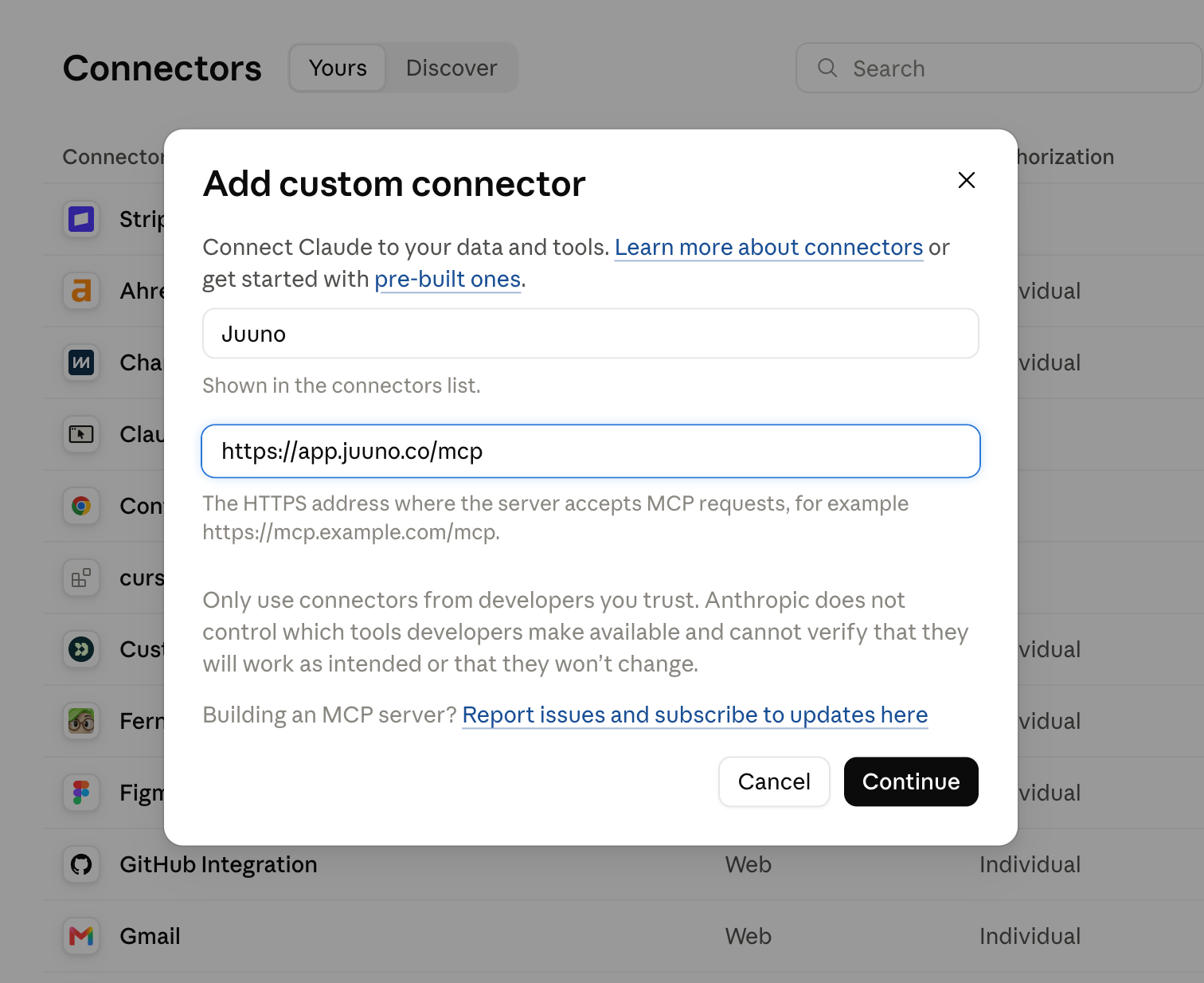
On a Claude Team or Enterprise plan, an owner adds the connector first, under Organization settings → Connectors. Free plans allow one custom connector.
Connect Claude Code
Run claude mcp add --transport http juuno https://app.juuno.co/mcp, then /mcp in Claude Code, pick juuno and choose Authenticate.
Try it
Ask "What's playing on the lobby screen?" or "Put the dinner menu playlist on the lobby screen." Claude can read your screens, playlists, schedules and media library, and change scenes, playlists and what each screen plays. It tells you what it replaced, so you can ask it to undo. It can't upload media or delete anything yet.
To add a workspace later, connect again. To disconnect, remove the connector in Claude's settings.
What it CAN do
Workspaces
List all workspaces you have access to
Screens
List screens in a workspace and see what each one is playing
Get details for a single screen
Connect a new screen (pair it)
Assign a screen to a playlist or schedule
Unassign a screen
Update a screen's settings
Refresh a screen remotely
Playlists
List all playlists in a workspace
Get a playlist's details, including every scene, its app, display time, and media
Create a new playlist
Duplicate an existing playlist
Update a playlist (name, color, transition speed)
Scenes (inside a playlist)
Add a new scene to a playlist
Set the media shown by a scene
Reorder a scene's position in the playlist
Update a scene's settings (name, display time, etc.)
Schedules
List all schedules in a workspace
Get a schedule's details
Create a new schedule
Update a schedule
Create or update scheduled items (what plays, when)
Media
Search your workspace's media library
Import new media into your library
Check the status of a media import
What it CAN'T do
Billing, plans, or subscription changes
Add, remove, or manage users / team members / roles
Change workspace settings or create new workspaces
Configure white-label branding or domain settings
Install, enable, or configure apps in the app catalog
Edit app content directly (e.g. design a Canva scene, write a quiz, pick RSS feeds) — it can add the scene, but content inside the app is configured in Juuno
View analytics, screen uptime history, or playback reports
Access account-level settings, API keys, or integrations
Delete workspaces, screens, playlists, scenes, schedules, or media
Download or export media files
Good to know
Every action names the workspace it ran in, so there's a clear audit trail
A screen plays EITHER a playlist OR a schedule, never both
The assistant can only see and act on data in workspaces your connected account has access to