
Duplicate multiple scenes at once
You can select several scenes in a playlist and duplicate them all in one go, into the same playlist or a different one.
Duplicate multiple scenes
Selection starts from any scene's menu, and the playlist needs to be editable. Copies are added in playlist order.
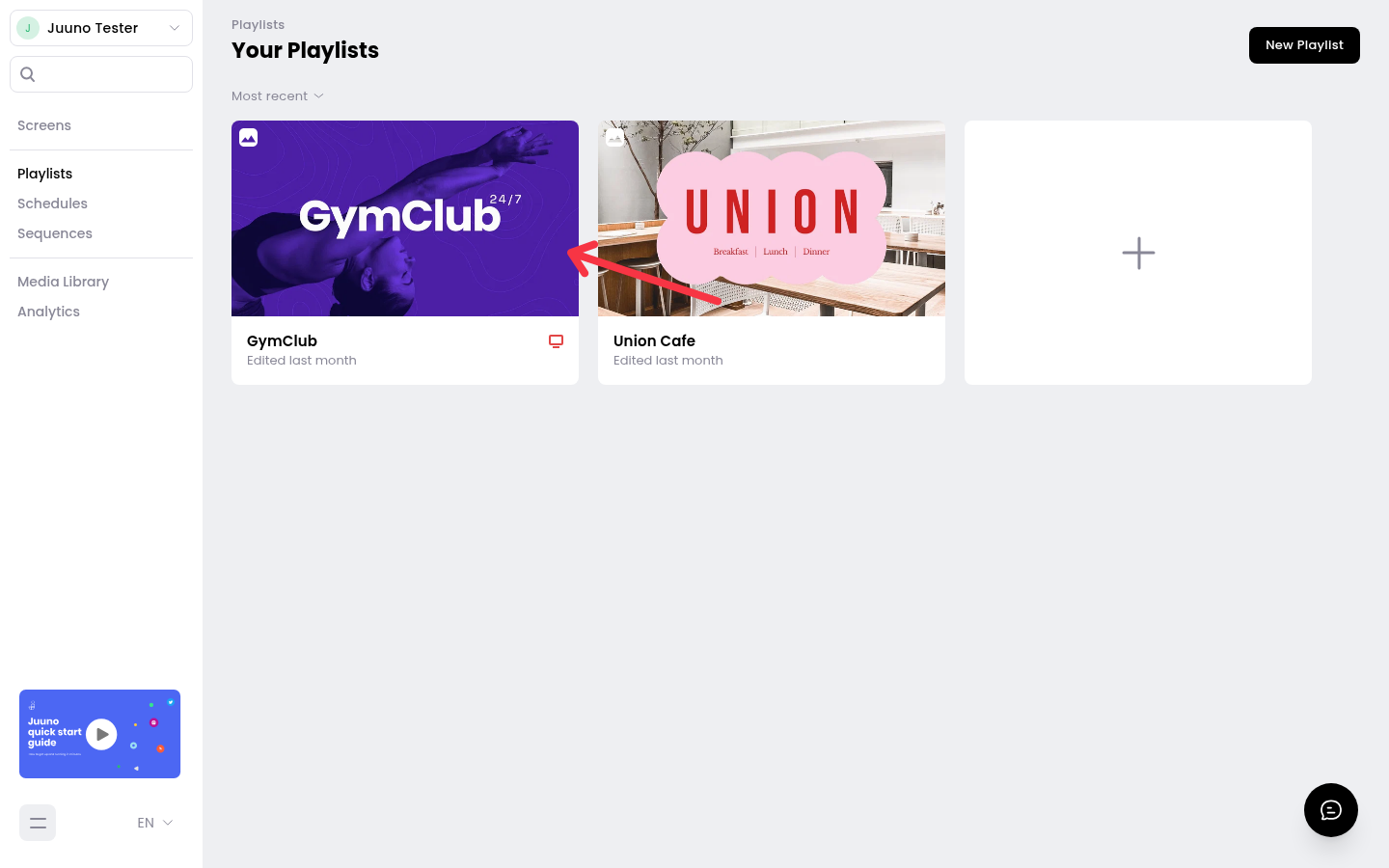
Go to Playlists and open the playlist.
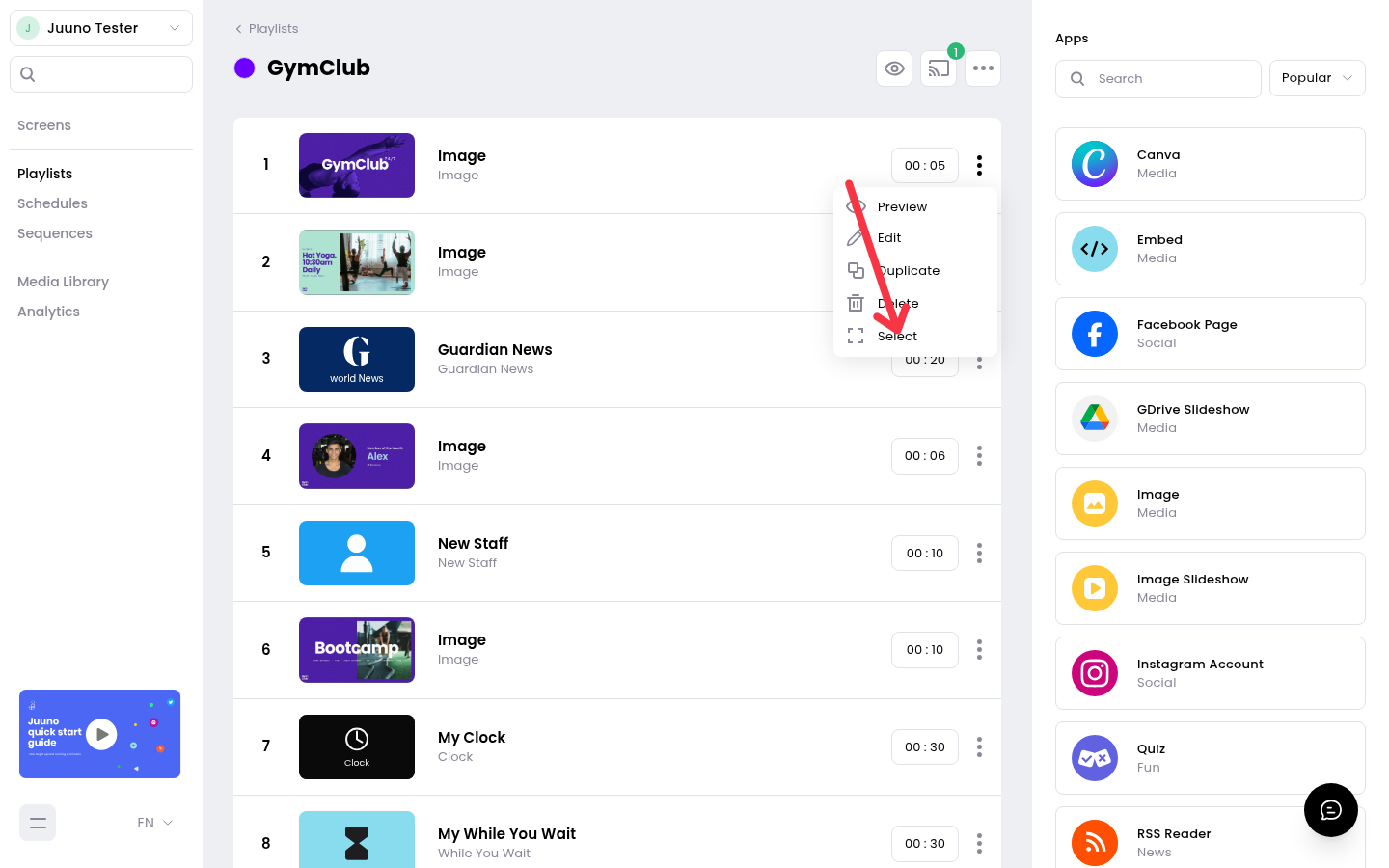
Click the three-dot menu on a scene and choose Select. Selection mode switches on and that scene is checked.
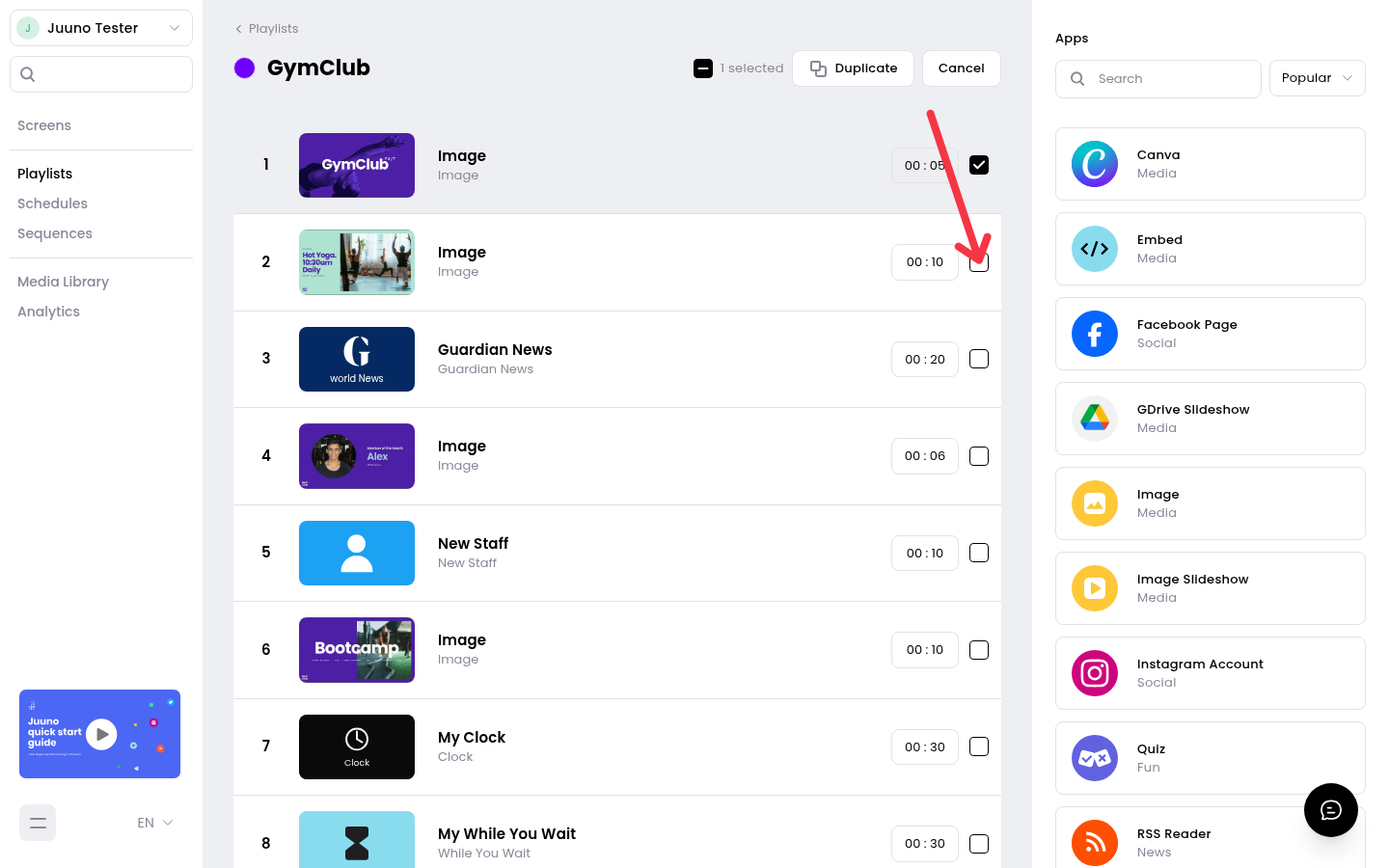
Click other scenes, or their checkboxes, to add them to the selection. Use the Select All checkbox in the header to select every scene in the list.
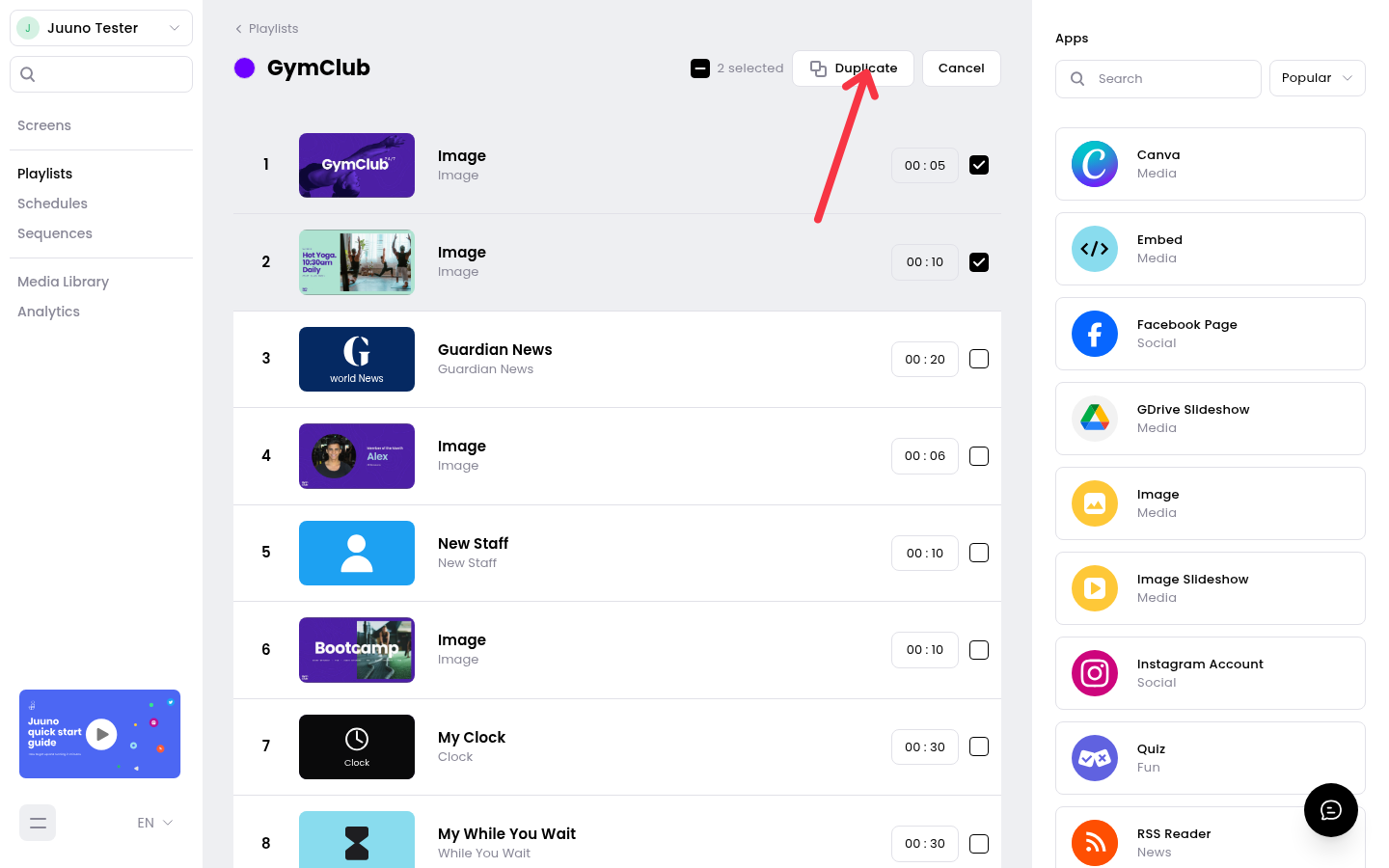
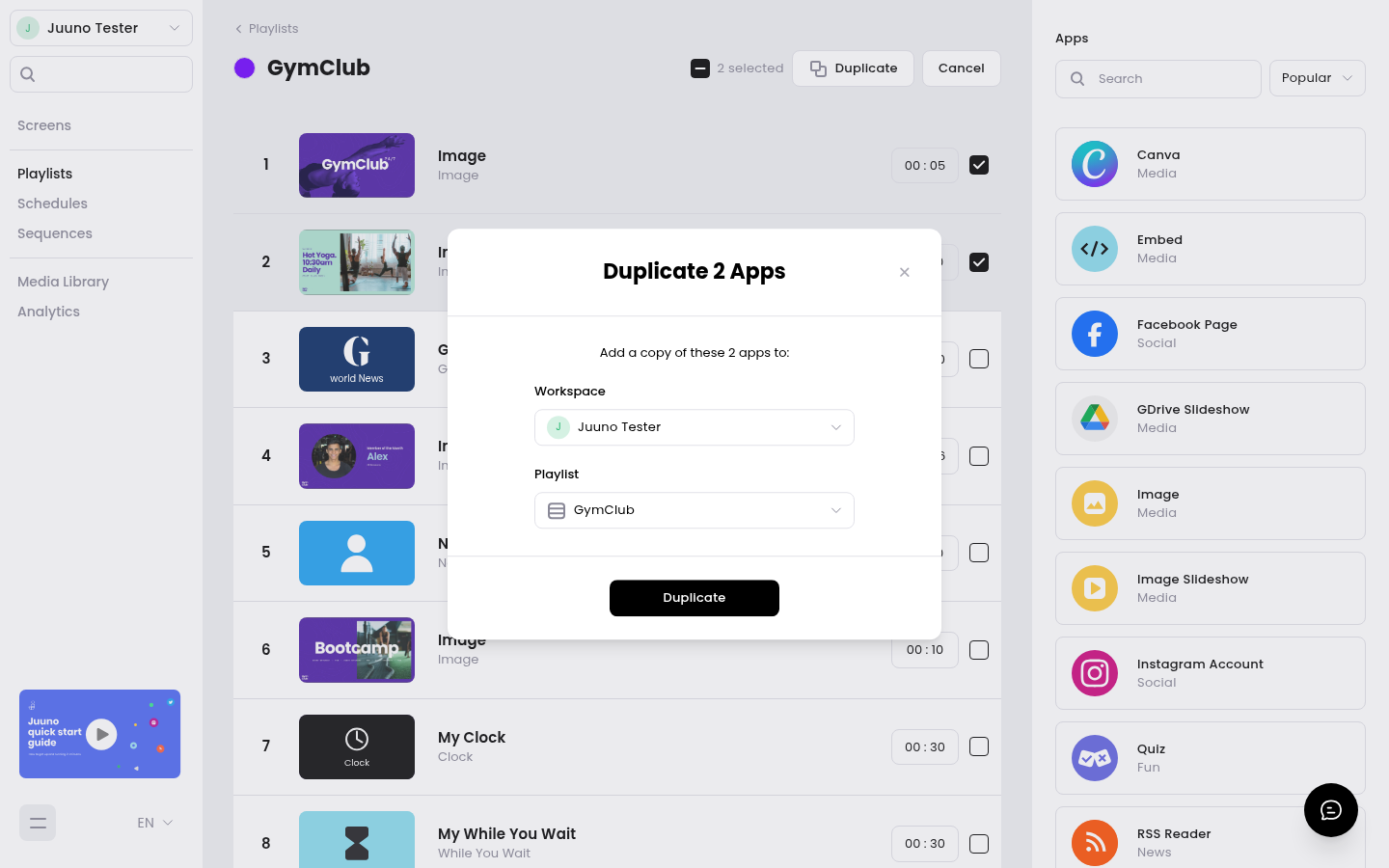
Click Duplicate in the header toolbar. The toolbar replaces the playlist's usual header actions while scenes are selected, and shows a Select All checkbox, how many scenes are selected, Duplicate, and Cancel.
In the dialog, choose the destination Workspace and Playlist, then click Duplicate. The dialog defaults to your current workspace and the playlist you started from, and its title shows how many apps you're duplicating.
Scenes that use apps which don't allow duplication are left out, and the dialog tells you how many were skipped. Click Cancel at any point to clear the selection without duplicating anything.