Clock App
The Clock app displays a minimalist clock in words, analog, or digital form on your screens.
When you add and setup an app to a playlist, it appears as a scene.
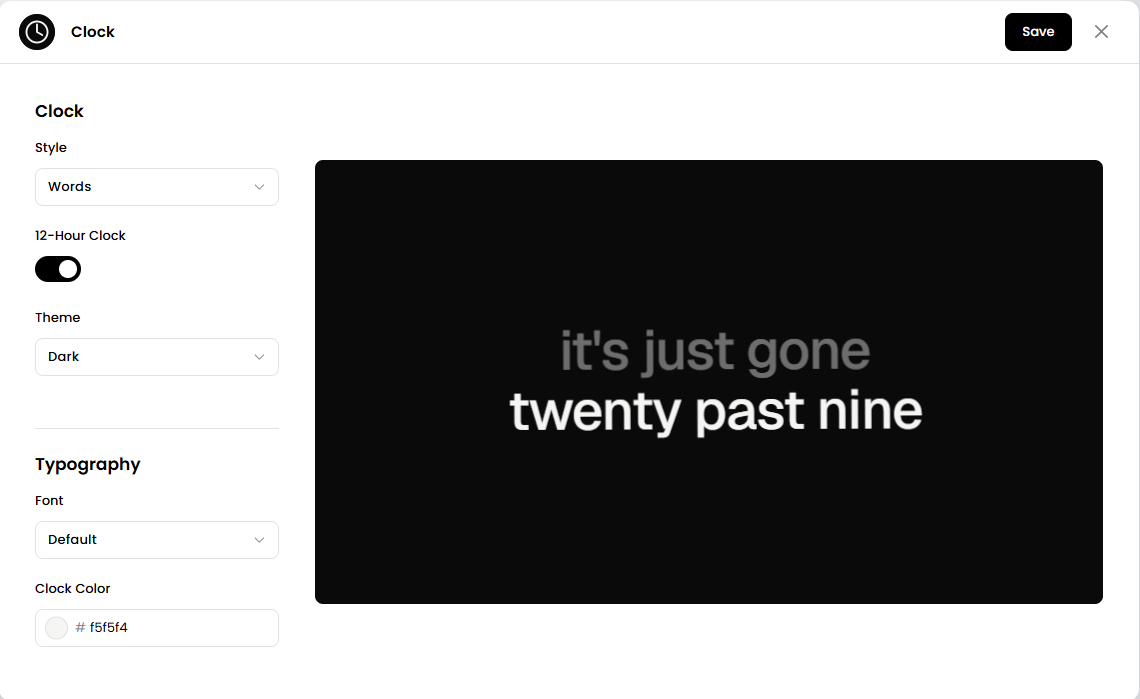
The clock displays the current time on your screen and can be styled with themes, fonts, and a custom background or logo.
Add the Clock App
Open the Playlist where you want to add the clock.
In the right panel, drag Clock into the playlist.
Open the scene to configure it.
Choose a Style and adjust the other settings.
Click Save.
Configuration Options
Style - Choose how the clock is displayed.
Words - The time is shown as words (for example, "it's nine o'clock").
Analog - The time is shown on a traditional clock face.
Digital - The time is shown as numbers.
12-Hour Clock - Toggle between 12-hour and 24-hour time. This is enabled by default.
Theme - Choose between Dark and Light. Selecting a theme sets the clock and background colors to that theme's defaults, which you can then change individually.
Font - Choose from Default, Serif, Mono, or Grotesk.
Clock Color - Set the color of the clock text or hands.
Background Image - Add an optional background image.
Background Color - Set the color behind the clock.
Logo - Add an optional logo to display on the clock.
Set the Scene Duration
After saving the app, you can adjust how long the scene stays in the playlist.
In the Playlist, find the Clock scene.
Click the duration value (for example,
00:30) to set how long the scene plays.00:30means the scene will play for 30 seconds.
Notes
Changing the Theme replaces the current clock and background colors with that theme's defaults.
The clock updates to show the current time automatically.