
Using Search
Press Ctrl K (or Command K on Mac) or click Search in the left navigation to search your workspace. Search finds screens, screen groups, playlists, schedules, sequences, pages, settings, and your other workspaces, and takes you straight to what you pick.
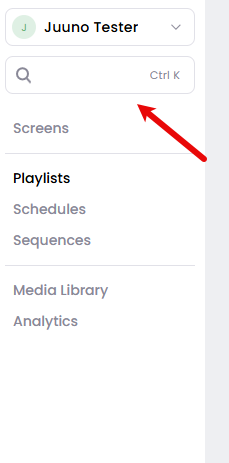
Open Search
Click Search in the left navigation, or press Ctrl K (Command K on Mac). On mobile, open the navigation menu and tap Search.
Type what you're looking for. The search field is already focused when Search opens, so you can start typing straight away.
Press Enter to open the highlighted result, or click any result.
Press Escape or use the same shortcut again to close Search.
Keyboard shortcuts
Shortcut | What it does |
|---|---|
Ctrl K / Command K | Open Search. Press it again to close. |
Escape | Close Search. |
ArrowDown / ArrowUp | Move the highlighted result. Navigation wraps around at the ends of the list. |
Enter | Open the highlighted result. |
Ctrl Enter / Command Enter | Open the highlighted page in a new tab, with Search left open. |
The Search shortcut only works while the navigation is showing, and is ignored while another dialog is open. Inside the Media Library, Ctrl K focuses that library's own search field instead.
What you can search
Search matches names, so look up the name of a screen, playlist, schedule, or sequence, or the name of a page or setting. Results are grouped, and a group only appears when it has a match.
Recent: with an empty search field, up to five items you opened recently. Recents are kept per workspace in your browser, so each workspace remembers its own.
Screens: screens in the current workspace, with their group shown as a hint. Screen groups also appear once you type.
Playlists, Schedules, and Sequences, plus their groups: these appear once you type. Group rows are marked Group, and playlists shared across all your workspaces are marked Global.
Go to: navigation pages such as Screens, Playlists, Schedules, Sequences, and Media Library. Choosing Media Library opens the library rather than a page. Analytics appears for administrators.
Settings: settings tabs, and sub-pages such as Billing, White Label, and integrations once you type. Profile is available to everyone; the other tabs require an administrator.
Workspaces: your other workspaces. Choosing one switches the current tab to that workspace; your other tabs stay on the workspace they're on.
How matching works
Search filters the names already loaded in your browser, so it works instantly as you type. Matching is case-insensitive and ignores spaces, and it finds your characters in order even when something sits between them: typing plst still matches Playlist. Closer matches, like a name that starts with what you typed, rank higher.
Group hints such as Group or Global are labels only. Search matches names, not those hints or the contents of your content.
Result limits
Content results are capped at 20 rows, with up to 8 per group such as Screens or Playlists. Pages, workspaces, and settings aren't counted in that cap.
The results list scrolls when there are more results than fit, and long names are shortened to fit the row.
What Search doesn't find
Search doesn't cover scenes, and it doesn't search the files inside your Media Library. It can still take you to the Media Library itself, where you can use its own Search assets field to find files by name.