
Website App
The Website app lets you display a live website as a scene.
When you add and setup an app to a playlist, it appears as a scene.
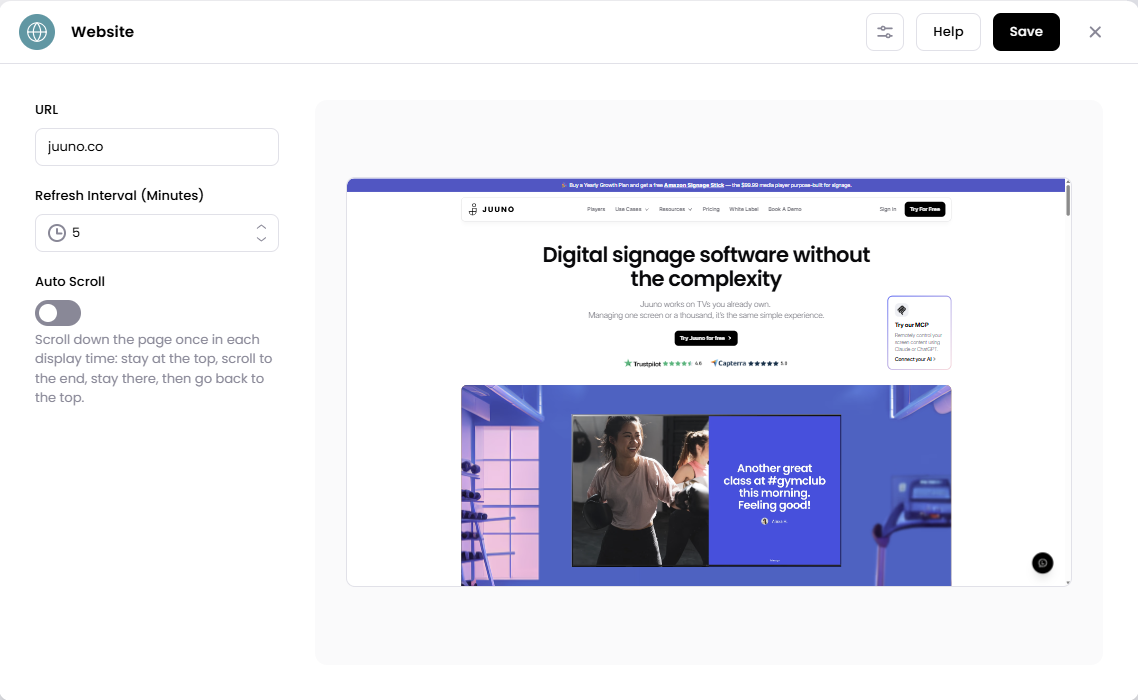
This allows you to show web pages such as public dashboards, booking systems, menus, or internal tools directly on your screen.
Add the Website App
Open the Playlist where you want to add the website.
In the right panel, drag Website into the playlist.
Open the scene to configure it.
Enter the URL of the website you want to display.
Adjust the refresh, rendering, and auto scroll settings if needed.
Click Save.
Configuration Options
URL - Enter the full URL of the website you want to display.
Example:
https://www.website.com
Refresh Interval (Minutes) - Set how often the website reloads automatically.
Example:
5refreshes the website every 5 minutes.
The refresh interval timer continues counting down in the background, even when it's not the scene currently playing in the playlist.
Auto Scroll - Auto Scroll moves the page during playback instead of showing it as a static page. When enabled, the page scrolls from the top toward its end and back during each scene display time.
Page Length (Screens) - This option becomes visible when you enable Auto Scroll. This sets how far the page scrolls: from 1 to 10 screen heights, in 0.5-screen steps.
Example:
3scrolls the page across 3 screen heights.
Page Length (Screens) sets the frame height for the page rather than measuring the page itself. A page longer than the set length is cut off at the end, and a page shorter than the set length leaves empty space. Choose a length that matches the page you are displaying.
Scrolling follows the scene's display time. If the display time is too short to reach the end of the page, the settings show a warning and playback may return to the top before reaching the end. Lengthen the scene's display time (see Set the Scene Duration below) or reduce Page Length (Screens).
Set the Scene Duration
After saving the app, you can adjust how long the scene stays in the playlist.
In the Playlist, find the Website scene.
Click the duration value (for example,
00:30) to set how long the scene plays.00:30means the scene will play for 30 seconds.
Notes
Some websites may not display correctly due to their security settings.
Certain websites use security headers such as
X-Frame-Optionswhich prevent us from displaying it.If a website does not load, try entering the full URL including
http://orhttps://.Website must be publicly accessible.