Digital signage is one of the easiest ways to grab attention and share information in real time, whether it’s a menu, an announcement, or your latest offer. You’ve likely seen it in action at restaurants, offices, schools, or retail stores: a TV screen showing vibrant, rotating content that’s easy to read and always up to date.
At its core, digital signage means using screens (usually TVs or monitors) to display digital content. This could be anything from images and videos to dashboards, menus, social media posts, or even web pages.
That brings us to the idea of a digital signage website: a smart, simple way to use your existing website content as live digital signage. Instead of designing new slides or graphics, you can just display your actual website or specific web pages directly on your screens.
It’s cost-effective, dynamic, and constantly current. If your website is already designed to communicate with customers or employees, why not repurpose it for your in-store, in-office, or public displays too?
I've watched people struggle to set this up with a spare laptop, and the good news is that you can do it so much better with any smart TV. Here's how.
4 reasons I recommend displaying website content on a digital signage screen
Here are four smart reasons to display your website content on a digital signage screen.
1. Real-time updates and automation
No need to reprint signs or redesign graphics. Just update your website, and your screens update too. It’s a simple way to keep your content fresh, accurate, and always aligned with what’s happening in your business.
2. Showcase live, dynamic content
Display real-time dashboards, social media feeds, or event calendars that update automatically. Whether it’s today’s appointments or your latest Instagram post, digital signage can pull in live content so your screens are always current, engaging, and reflecting what’s happening right now.
3. Reduce costs with affordable signage solutions
Digital signage doesn’t have to be expensive. Use smart TVs with web browsers or pair screens with affordable devices like Raspberry Pi or Amazon Firestick. These low-cost, supported players make it easy to get started without the need for complex setups—just simple, scalable signage that fits your budget.
According to our own platform data, 69% of screens run through a browser or Fire TV with no dedicated media player at all. Most businesses never need to buy extra hardware.
4. Make use of existing website assets
Your website is already filled with valuable content—why not display it on your screens? Showcase your About page, services, events calendar, menu, or landing pages as part of your digital signage. It’s an easy way to repurpose content you’ve already created, saving time while keeping your messaging consistent across both online and in-person customer experiences.
Use cases for displaying your website with digital signage
From showcasing menus to sharing real-time updates, using your website as digital signage is a flexible solution for many industries. Here’s how different businesses are putting it to work:
Restaurants & cafes
Display your website’s menu, daily specials, or seasonal promotions right on your screens. Add nutrition facts, ingredients, or allergy info to help customers make informed choices—all directly from your site.
Offices
Use digital signage to display live dashboards, internal announcements, or project timelines pulled straight from your website or intranet. It’s a great way to keep teams informed, aligned, and motivated throughout the day. Whether it’s KPIs, company news, or upcoming deadlines, your office screens can reflect what matters most—automatically and in real time.
Schools & universities
Showcase upcoming events, class schedules, or updates from your student portal directly on hallway or lobby screens. It’s an easy way to keep students and staff in the loop without relying on emails or posters. Just sync your website content, and your signage stays current with minimal effort.
Retail stores
Bring your website’s best content in-store by displaying product pages, user-generated content, and customer reviews on digital signage. Highlight top-rated items, showcase how real customers use your products, or promote current deals—all pulled directly from your site. It’s a powerful way to build trust and drive in-person sales.
Churches & community centers
Share uplifting quotes, service times, community bulletins, or event info from your website on digital signage throughout your space. It’s a thoughtful way to keep members informed and inspired, using content you’re already updating online—now visible to everyone who walks through your doors.
Hardware & software: what you need to get started
Getting set up is simple with the right tools in place.
TVs or monitors
You can use most modern smart TVs with built-in browsers, or connect standard monitors using affordable devices like a Firestick or Raspberry Pi. As long as your screen can access a browser or player, you’re ready to go.
Digital signage software (like Juuno)
To display your website content, you’ll need cloud-based digital signage software. Platforms like Juuno make it easy to show live URLs, social media feeds, Canva designs, PDFs, and more—no technical skills required. You can manage content from anywhere, schedule what shows on each screen, and keep everything updated in real time, all from a single, easy-to-use dashboard.
Supported devices & setups
If you need higher uptime or more control, consider using a dedicated external media player instead of relying solely on a smart TV.
Digital signage works with a variety of affordable, easy-to-find devices. Popular options include Amazon Firestick, Chromecast, Raspberry Pi, and Android boxes—all of which can connect your screens to your signage software. These devices are great for small businesses and teams looking for a simple, flexible setup.
Step-by-step tutorial: how to display your website as digital signage
Setting up your website as digital signage is easier than you might think. Follow these steps to go from idea to on-screen in no time.
Step 1: Choose a digital signage platform
Start by selecting a digital signage platform that fits your needs. Look for one that supports live URLs, offers scheduling tools, and works with your preferred devices. Consider how easy it is to update content, whether you need multi-screen management, and if you’ll want to display other media like videos or social posts. Browser-based platforms like Juuno are ideal for most small teams—simple to use, affordable, and compatible with smart TVs and low-cost players.
Step 2: Set up your hardware
Once you’ve chosen your software, it’s time to get your screens ready. Whether you’re using a smart TV or an external display with a media player, setup is quick and easy. Just follow these steps:
Mount your screen securely in a visible location
Connect to a stable internet source (Wi-Fi or Ethernet)
Test screen resolution and brightness for clear viewing
You’re now ready to display content.
Step 3: Add your website URL to the digital signage CMS
With your screen set up, head to your digital signage platform’s dashboard. In Juuno, use the Embed Anything tool to add your website or a specific page. Just paste the URL, give it a title, and save it to your playlist. You can choose whether it fills the screen or runs alongside other content. It’s a simple way to turn your existing site into live, visual signage—perfect for menus, event calendars, dashboards, and more.
Step 4: Adjust display settings for optimal viewing
Make sure your website content looks great on screen by fine-tuning the display settings. Use features like autoscroll to move through longer pages, adjust zoom levels to ensure text is easy to read from a distance, and set the display duration to control how long each page stays on screen. These simple tweaks help create a polished, professional viewing experience for your audience.
Step 5: Schedule content (if needed)
Want your website to appear only at certain times? Most digital signage platforms let you set a schedule so your webpage displays during specific hours or days. Even better, you can mix your website with other content using playlists. For example, show your menu in the morning, your Instagram feed at lunch, and upcoming events in the afternoon—all automatically.
Here’s how to make the most of scheduling:
Create playlists with multiple content types
Assign different content to specific time slots
Set recurring schedules for daily or weekly routines
This approach keeps your screens dynamic and relevant throughout the day, without needing manual updates.
Pro tips I offer clients before they go live
A few simple design tweaks can make your website much easier to view on screens.
Use large fonts & high contrast colors
Design your pages with distance in mind—viewers may be several feet away. Choose bold, easy-to-read fonts and strong color contrast to ensure your content stays legible and visually clear on any screen size. Experienced UI/UX design companies apply principles of visual hierarchy, accessibility, and responsive design to ensure layouts remain intuitive and impactful, even when viewed from afar or on large-format displays.
Simplify navigation and remove interactive elements
Digital signage is meant to be viewed, not clicked. Remove navigation menus, login buttons, and popups that don’t serve a purpose on-screen. These elements can clutter the display and confuse viewers. Instead, streamline the page so it works as a passive visual—clear, clean, and easy to understand at a glance. Less interaction means more impact.
I still get on calls with customers setting up their first screen most weeks, and nine times out of ten the first fix is stripping the nav bar and buttons off whatever page they're trying to display.
Responsive design is critical
Your website should look great on any screen, whether it’s mounted in landscape or portrait mode. A responsive design ensures your content adapts to different screen sizes and orientations without cutting off important information. Test your pages on various devices and resolutions to make sure everything scales properly. This is especially important for menus, calendars, and dashboards that may need to shift layout depending on the screen setup in your space.
Our platform data shows 92% of screens run landscape, so design for a wide format first unless you have a specific reason (such as a narrow hallway or a tall menu list) to go portrait.
Use dedicated signage pages
To get the cleanest display, consider creating landing pages specifically for digital signage. Remove the navigation bar, sidebar, and footer to keep the focus on key content. A stripped-down design loads faster, looks better on screen, and avoids distractions—making it ideal for menus, announcements, or any message you want to highlight clearly and effectively.
Advanced features to try
Once your website is up and running as digital signage, there’s plenty more you can do to enhance the experience. These advanced features can help you create more dynamic, engaging displays tailored to your audience.
Multi-zone layouts: Divide your screen into sections to display multiple content types at once, like your website alongside weather updates, news tickers, or promotional videos.
Live data dashboards & integrations: Pull in real-time data from Excel, Google Sheets, or analytics tools to show sales metrics, schedules, or performance dashboards directly on screen.
Social media feeds as website content: Display your latest Twitter, Facebook, or Instagram posts to keep content fresh and highlight real-time interactions with your brand.
Interactive touchscreen kiosks (optional): For high-traffic environments like museums or retail stores, turn your signage into a kiosk with touch navigation—perfect for directories, product selectors, or educational displays.
Best digital signage software for website content
Let's take a look at the best options for digital signage software.
Pricing | Hardware required | Live URL support | Multi-zone layouts | |
|---|---|---|---|---|
Juuno | $5 per screen/month ($9 advanced) | Smart TVs or affordable media players | Yes | Yes |
Yodeck | Free (1 screen), $8+/screen/month | Yodeck player (free with annual plans) | Yes | Yes |
ScreenCloud | $20 per screen/month | Compatible media players or smart TVs | Yes | Yes |
Scala | Custom enterprise pricing | Proprietary enterprise media players | Yes | Yes |
Juuno
Best for: Simplicity & Canva integration

Juuno is a clean, user-friendly digital signage platform built for small teams and growing businesses. It’s perfect for anyone who wants to display websites, menus, videos, or social feeds—without a learning curve. With drag-and-drop tools and Canva integration, creating playlists feels as easy as building a Spotify queue.
Top Features:
Canva integration for fast, beautiful design
Works with smart TVs and affordable players
Unlimited playlists, apps, and teammates
Real-time content updates and scheduling
Embed websites, PDFs, videos, and social media
Pricing:
Starts at just $5 per screen/month, with advanced features available at $9 per screen. No hidden fees or user limits.
Yodeck
Best for: Budget-friendly, good for menus
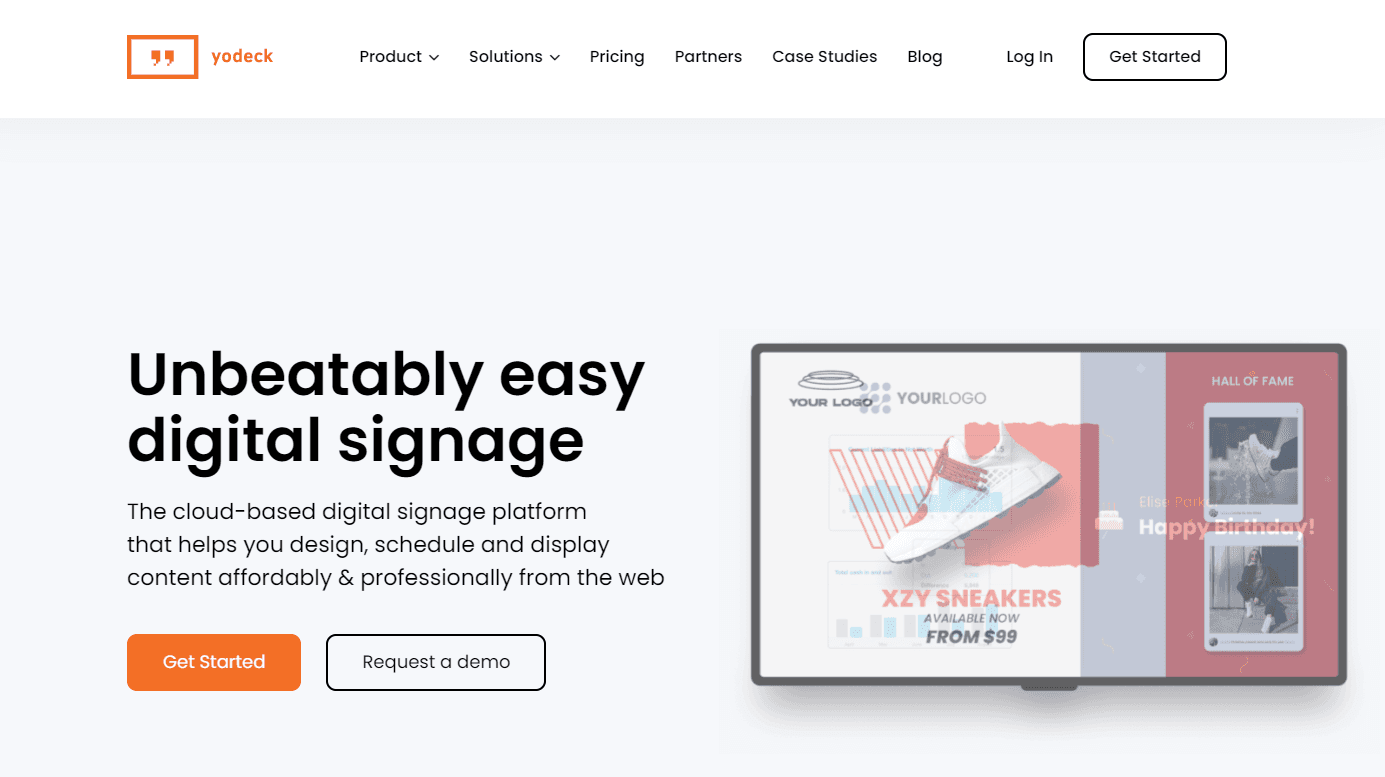
Yodeck is an affordable, cloud-based digital signage solution that's especially popular with restaurants, clinics, and offices. It supports a wide range of content types—including menus, dashboards, and announcements—and comes with pre-built templates to speed up setup. Great for teams that need multi-screen management without high costs.
Top Features:
Menu integration with DSMenu
Screen layout templates for fast design
Remote screen control and scheduling
Web page and document display support
Business dashboard integrations (Power BI, Tableau)
Pricing:
Starts with a Free plan for one screen. Paid plans begin at $8 per screen/month, with added features like user roles, analytics, and security tools. Annual plans include a free Yodeck player.
ScreenCloud
Best for: Good app integrations
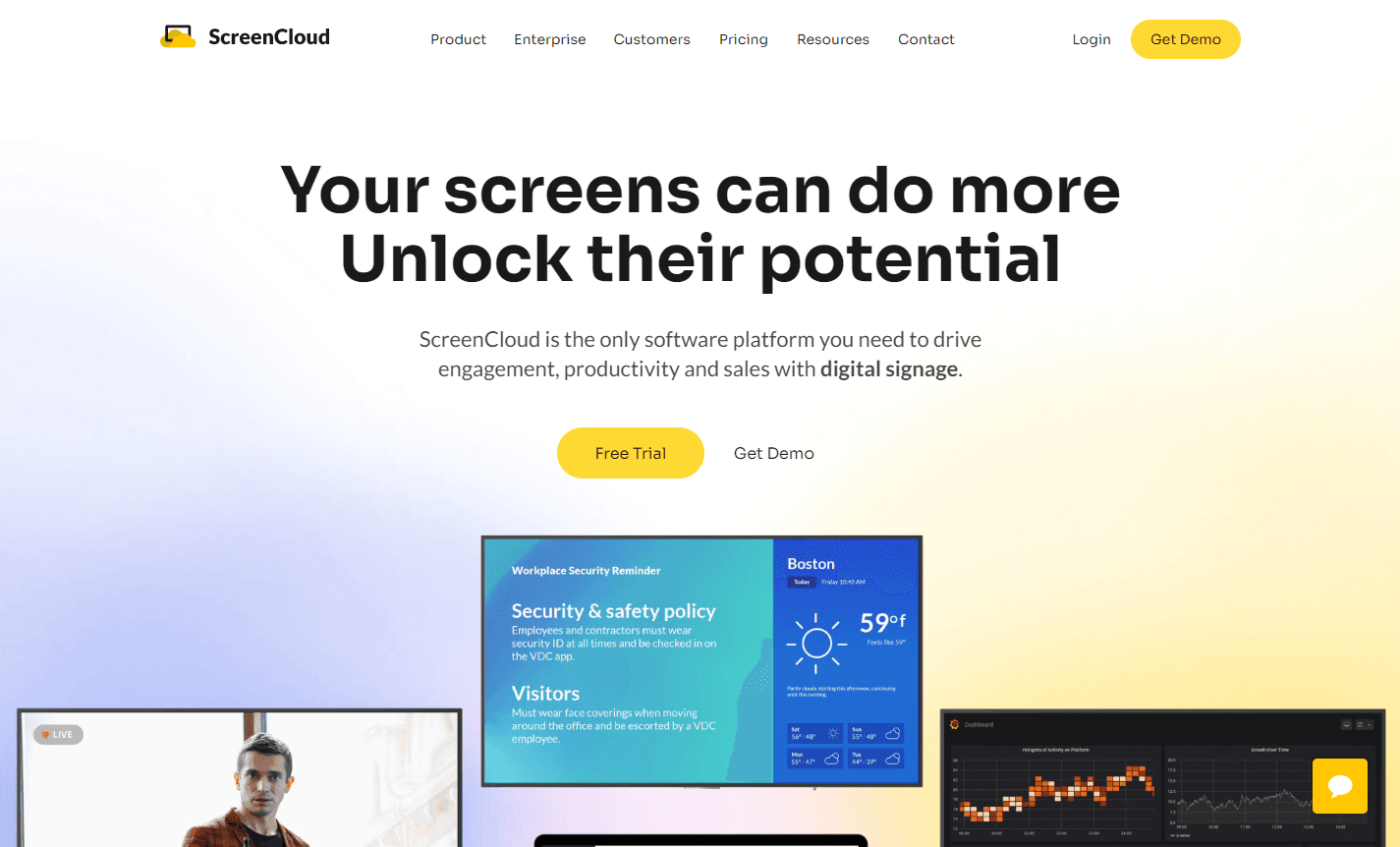
ScreenCloud is a versatile digital signage platform known for its wide range of app integrations and flexible content options. It’s a solid choice for both employee-facing screens and customer displays, letting you pull in content from tools like Google Slides, social media, dashboards, and more—all from one easy-to-manage platform.
Top Features:
Integrates with Google Slides, RSS, weather, and more
Supports employee communications and customer-facing content
Business dashboard support for real-time insights
Social media and video display options
Centralized management for multiple screens
Pricing:
Plans start at $20 per screen/month (Core). The Pro plan at $30 per screen/month adds secure dashboards and device management. Enterprise plans available for 25+ screens. Free trial included.
Scala
Best for: Enterprise companies
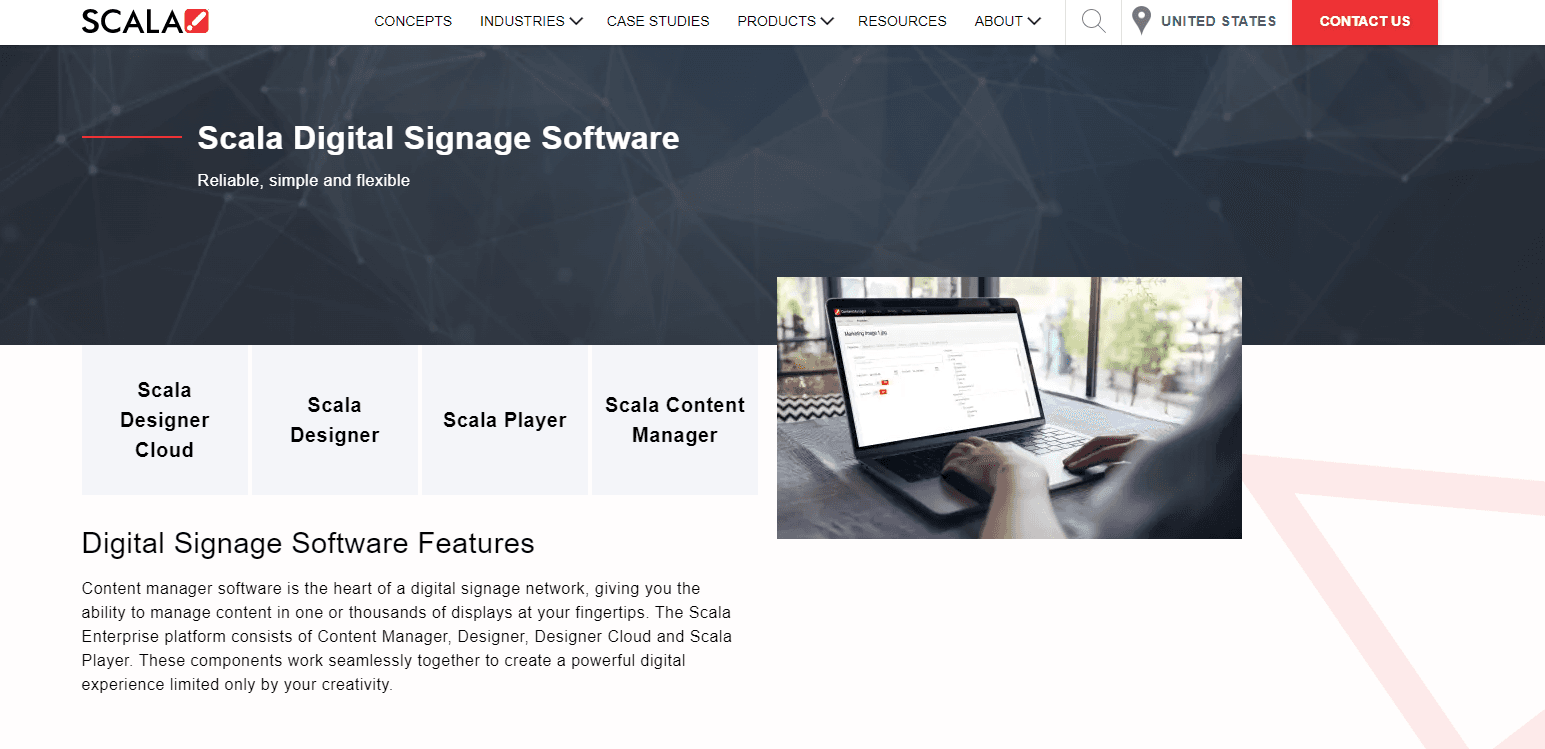
Scala is a robust digital signage platform designed for large organizations that need advanced features, high reliability, and centralized control. It’s ideal for enterprises managing complex deployments—like retail chains, airports, or corporate campuses—with support for interactive kiosks, video walls, digital menus, and smart shelf signage. Scala also offers proprietary hardware for offline playback and maximum performance in demanding environments.
Top Features:
Enterprise-grade content management system
Supports kiosks, video walls, and shelf signage
Real-time updates and custom integrations
Proprietary media players for offline use
Built-in tools for large-scale deployment and control
Pricing:
Scala is an enterprise-only solution. Contact their team for a custom quote tailored to your organization’s scale and requirements.
Frequently asked questions
Can I use a regular TV for digital signage?
Yes, most regular smart TVs work great for digital signage as long as they have a built-in web browser. You can simply connect your TV to the internet, open your signage URL, and start displaying content without needing any special commercial display equipment.
Do I need special hardware?
Not necessarily. Web-based platforms like Juuno work with smart TVs, but for better performance and reliability, we recommend using supported players like Firestick, Raspberry Pi, or Android boxes. Browsers alone can sometimes struggle with long sessions or certain content types, so dedicated players offer a smoother experience.
Can I show interactive websites?
It’s not recommended unless you’re using a touchscreen display. Most digital signage is meant to be passive, so interactive elements like forms or buttons won’t work well. For kiosks or directories with touchscreens, interactive websites can be effective—but for standard screens, stick to view-only content.
How do I update my website signage?
It’s simple—just update your website as usual, and the changes will appear on your signage automatically if the page is live. If you’re using a cached version or playlist, you may need to resync or refresh the URL in your signage software to reflect the latest content.
How much does it cost?
Most digital signage software for small and mid-sized businesses costs between $5–$25 per screen per month. From our data, the average account runs 2.1 screens (median 1), so most businesses are looking at a very small monthly bill either way. Juuno offers a more affordable option, typically ranging from $5 to $9 per screen, making it a budget-friendly choice for growing teams and businesses.
Juuno is the best digital signage software for small businesses that want their website live on a screen without hiring a developer. Try it free.


Mike Hill is CEO and Co-founder of Juuno, a digital signage platform used across 20,000+ screens in 128 countries. Before Juuno, he spent over a decade running advertising agencies, including as CEO. Juuno is his third software product. He's hands-on across product, development, and customer support, and has worked directly with thousands of businesses on their digital signage setups.
