Disable scene auto-advance
Disable scene auto-advance is a screen-level setting (previously called Presentation Mode) that stops your content from advancing on its own. When it is on, scenes on that screen stay put until you manually move to the next one, like advancing slides in a presentation.
What Disable scene auto-advance does
When Disable scene auto-advance is turned on:
No auto-advance: Scenes do not automatically move to the next one after their duration ends.
No boundary looping: When you reach the last scene and try to advance, the player stays on the last scene instead of looping back to the first. Backward navigation also stops at the first scene.
Manual control only: You must advance each scene yourself.
By default, the setting is off—your playlists cycle automatically through all scenes and loop continuously.
How to turn Disable scene auto-advance on
The toggle lives in the Advanced section of a screen's settings, so it applies to one screen at a time.
Go to Screens in the app.
Click the screen you want to change.
In Screen Settings, scroll to the Advanced section.
Turn on Disable scene auto-advance.
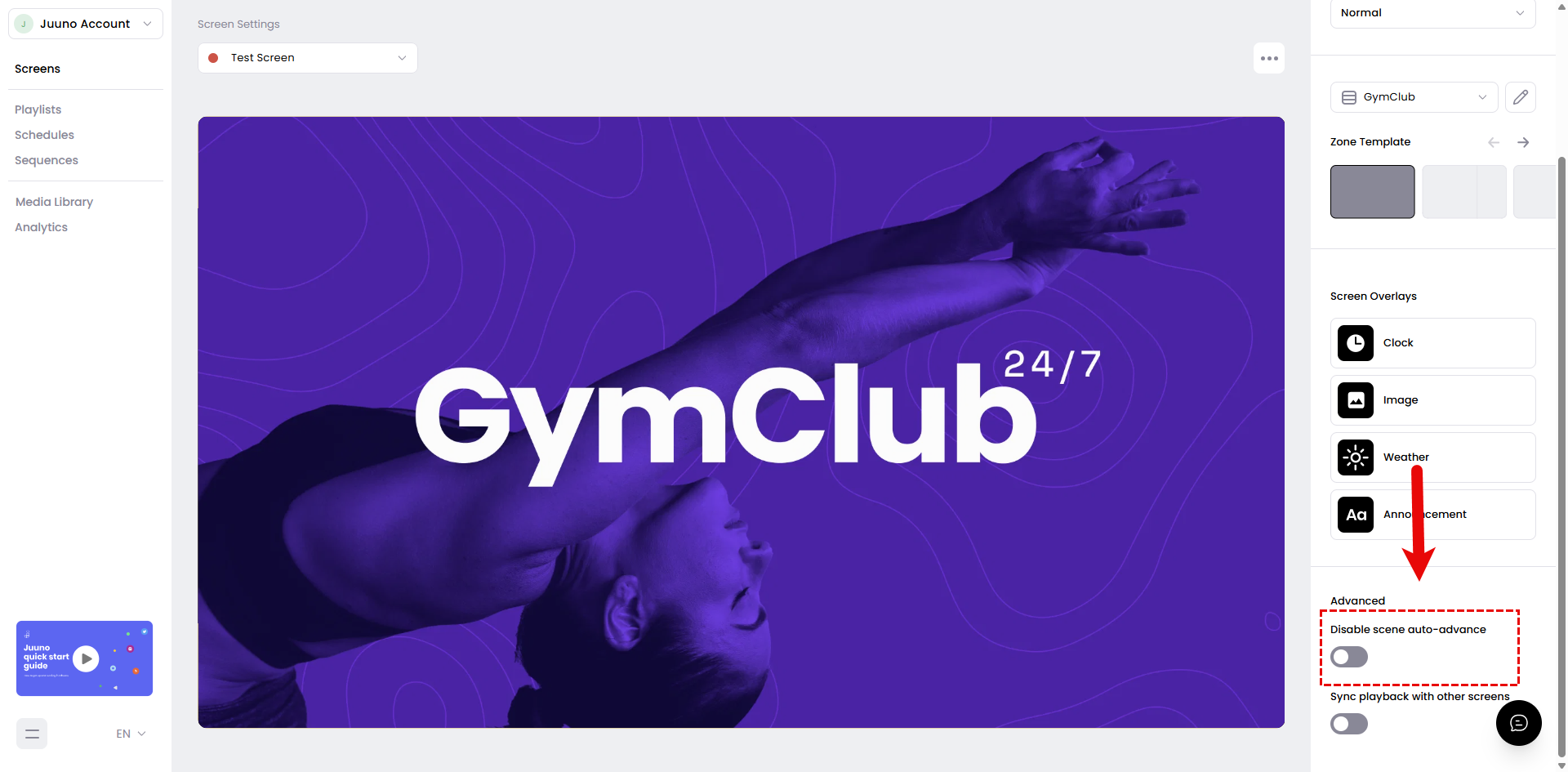
The change saves immediately; there is no separate Save button.
When to use Disable scene auto-advance
This setting is useful when you want full control over when each scene appears, such as:
Live presentations or meetings
Interactive sessions where you discuss each slide
Displays where you want to hold on content until you manually advance
For typical digital signage setups where content runs unattended, keep the setting off.
This is a per-screen setting—turning it on for one screen does not affect other screens. Because it switches the screen to manual playback, it does not run at the same time as synchronized automatic playback.
My playlist isn't auto-advancing. Is this setting the cause?
If your playlist seems stuck on one scene and won't advance to the next, Disable scene auto-advance may be turned on for that screen.
Go to Screens and click the screen in question.
In Screen Settings, open the Advanced section.
If Disable scene auto-advance is on, turn it off to restore normal auto-advancing behavior.