Secured Dashboard (Beta)
The Secured Dashboard app lets you display private dashboards on your screens. It automatically signs in and captures screenshots for your screens.
Download the chrome extension here first
When you add and setup an app to a playlist, it appears as a scene.
Ideal for internal tools, analytics dashboards, or admin panels that are not publicly accessible.
Add the Secured Dashboard App
Open the Playlist where you want to add the dashboard.
In the right panel, find and drag the Secured Dashboard into your playlist.
Open the secured dashboard scene to configure.
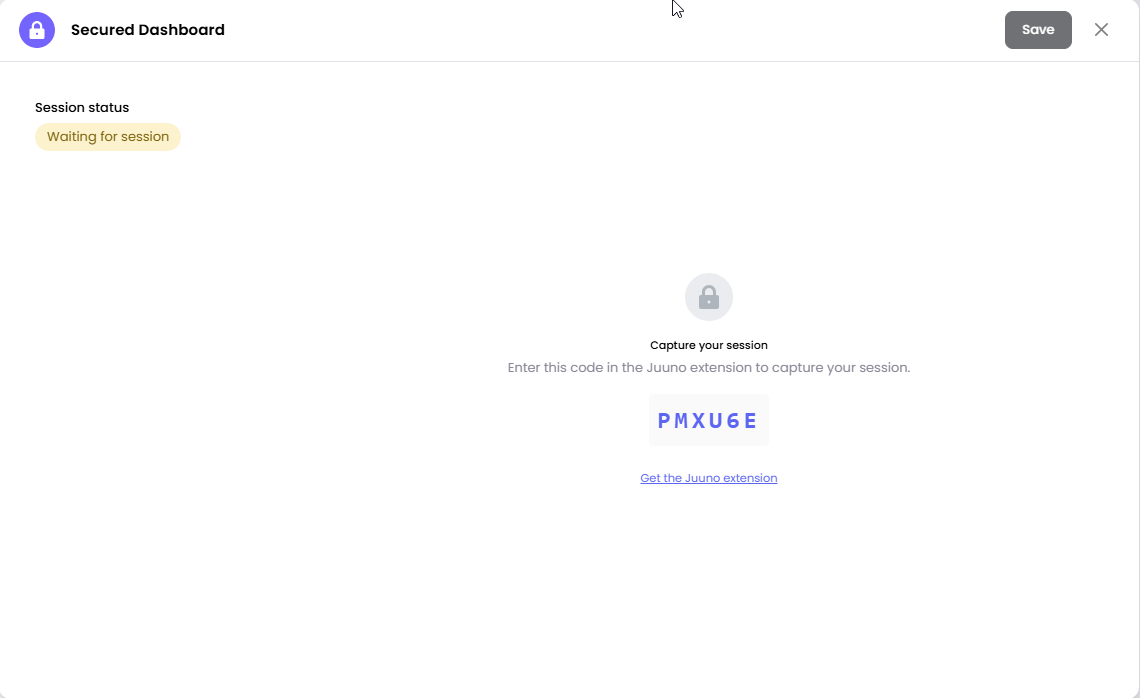
Configure the Secure Dashboard app.
Configuration
Get or Install Juuno Extension: Please follow the instructions below (Installing the Extension) to install the extension.
Copy the code provided by the Secured Dashboard app.
Navigate and/or log in to the dashboard page you want to display on your Screen.
While on that page, click and open the Juuno Extension.
Click Allow access to this site.
A confirmation modal may appear, click Allow.
If a further confirmation appears, click Send to finalize setup.
Paste or enter the code provided by the Secured Dashboard app.
Click Continue.
Navigate back to your Juuno Playlist and confirm that the page is reflected in your Secured Dashboard app.
Click Save.
Installing the Extension
Please use the download link below to get the extension file, then follow the installation steps for your browser.
Download the
.zipfileExtract or unzip all the files to a folder.
Do not delete, rename, or move this folder after installing the extension. The browser may continue loading the extension from this folder.
Installing the extension on Chrome, Edge or Brave:
Open your browser
Go to your browser’s extension page:
Chrome:
chrome://extensions
Edge:edge://extensions
Brave:brave://extensionsTurn on Developer mode in the top-right corner.
Click Load unpacked.
Select the extracted extension folder.
Click Select Folder or Open, depending on your device.
The extension should now appear in your list of installed extensions.
Unsupported Browsers:
Firefox and Safari are not currently recommended for manual installation.
Firefox may only load the extension temporarily, which means the extension may be removed after the browser is restarted.
Safari handles browser extensions differently from Chrome-based browsers. It may require additional Safari-specific setup, developer tools, extension signing, or distribution through Apple-supported methods. Because of this, Safari is not suitable for the same manual installation process used by Chrome, Edge, and Brave.
Because of these limitations, we currently do not provide manual installation instructions for Firefox or Safari.
For best experience, we recommend using Chrome, Edge, or Brave instead.
How It Works
The app takes a screenshot of your dashboard via the extension.
Screenshots refresh automatically every 5 minutes to keep your display updated.
Secured Dashboard app is currently labeled Beta while fixes and improvements are being developed.
Set the Scene Duration
After saving the app, you can also adjust how long the scene stays in the playlist.
In the Playlist, find the Secured dashboard scene.
Click the duration value (for example,
00:30)00:30means the scene will play for 30 seconds.
For Issues and Concerns
If you're still having trouble, feel free to contact us and we’ll help you set it up.